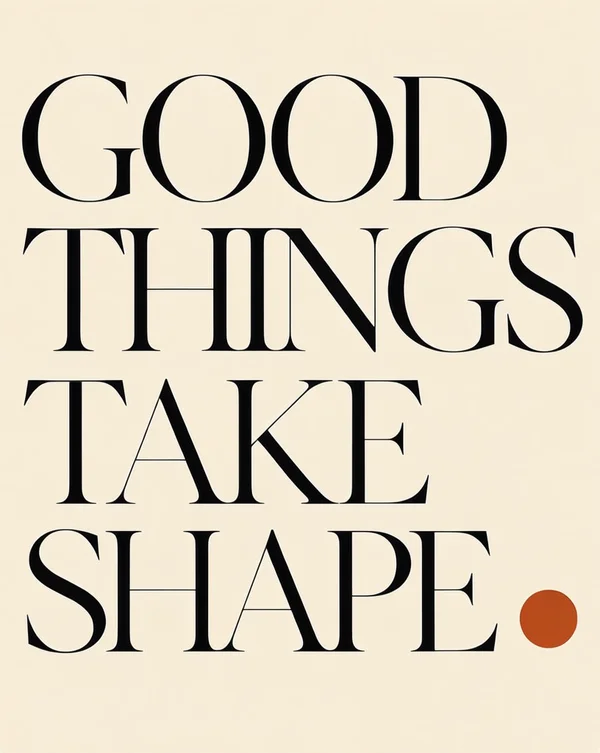
Good things take shape
Text prompt · 816 × 1024 px
View prompt and settings ↗WORDS, IMAGES & COMPOSITION
Create a poster by describing the scene and quoting the words that belong in the image. Use a text prompt for a simple composition or a JSON layout to specify separate regions for a headline and subject.
These are selected images generated with this studio’s model service. Open a case for its original PNG, actual input and generation settings.
Text prompt · 816 × 1024 px
View prompt and settings ↗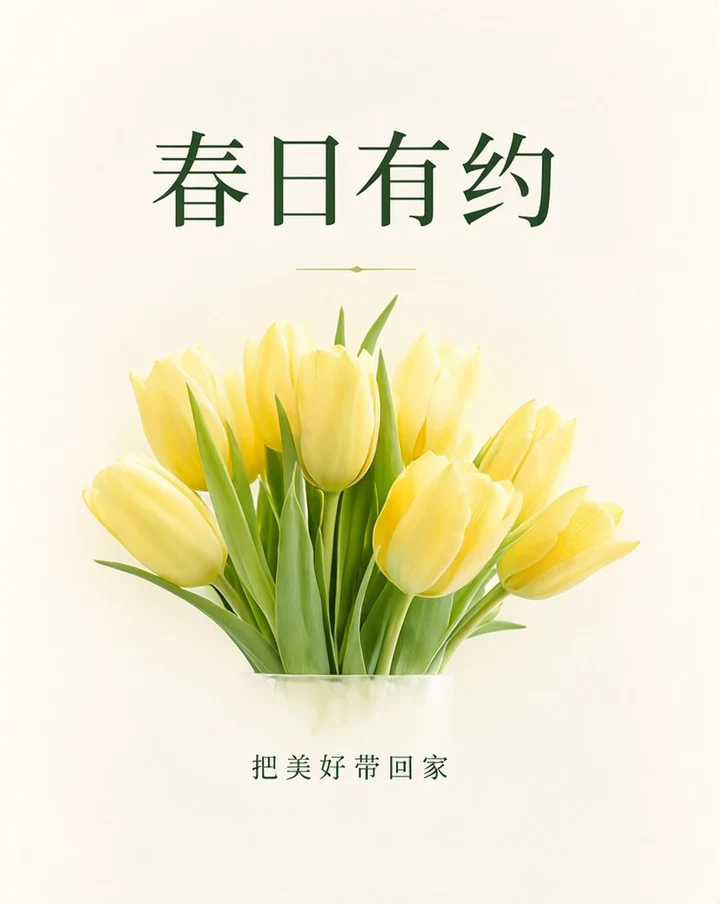
Text prompt · 816 × 1024 px
View prompt and settings ↗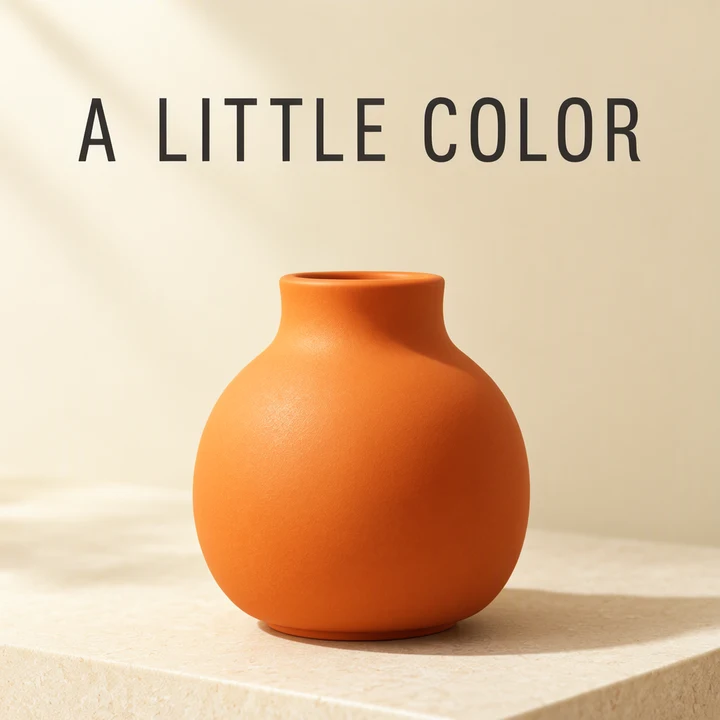
JSON layout · 1024 × 1024 px
View prompt and settings ↗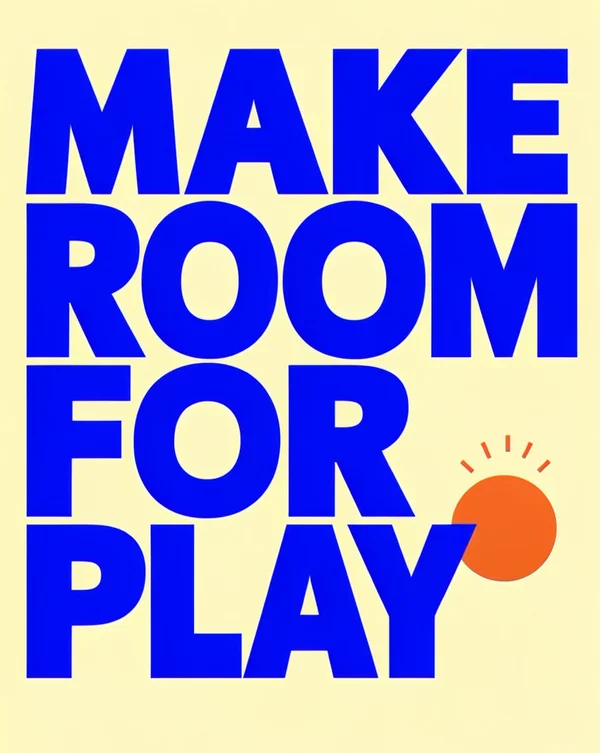
Text prompt · 816 × 1024 px
View prompt and settings ↗An event poster needs more than a visual style. Include the event name, date, location and any supporting line you want rendered. Keep each text block short, and distinguish the exact words from instructions about their appearance.
A clean flat graphic poster, warm ivory background, very large elegant black serif typography reading exactly "GOOD THINGS TAKE SHAPE" arranged in four balanced lines, a single burnt orange circle in the lower right, refined Swiss editorial composition, no other words, no mockup.Say whether you need an event announcement, a product promotion or an editorial poster. Describe the focal subject and the setting. A flat poster and a photographed poster mockup are different requests; state which one you want.
Put the intended headline in quotes. Give the date and location their own lines, and describe their relative size. Avoid putting optional wording into the prompt unless you want it visible in the image.
A text prompt can describe a large title above one subject. For multiple text blocks, use JSON text items with separate boxes. Keep object descriptions separate from the words to render.
Review the full-size image for spelling, unwanted words, line breaks and important dates. Adjust a crowded brief before trying again. Download the PNG once the result meets your needs.
The original result is the evidence for a case. A prompt describes the intended output; it does not guarantee every character or position in another generation.
Natural-language prompts describe the scene and exact words together. A JSON layout separates the scene summary from text and object items, each with a requested box. This studio’s layout mode uses a 1024 × 1024 canvas and centered [top, left, bottom, right] coordinates.
See the layout workflow for a complete JSON example, or the prompt guide for wording tips. Format references: OpenMOSS project and official user guide.
Your first Standard image is free, without a visible watermark and with no sign-in or card required. The published credit rates are 1 credit per Standard image and 2 per HD image. Review pack prices and output sizes before choosing a pack.
Yes. Start with a text prompt, quote the headline and describe where it belongs. JSON is an option when you need to specify multiple text or object regions.
You can request both languages and explain which should be larger. Review every line in the result; language support does not guarantee perfect spelling or placement.
No. It fills the prompt and settings. You can edit the input before pressing Generate image. Your first Standard image is free.