
Good things take shape
Text prompt · 816 × 1024 px
View prompt and settings ↗WORDS, IMAGES & COMPOSITION
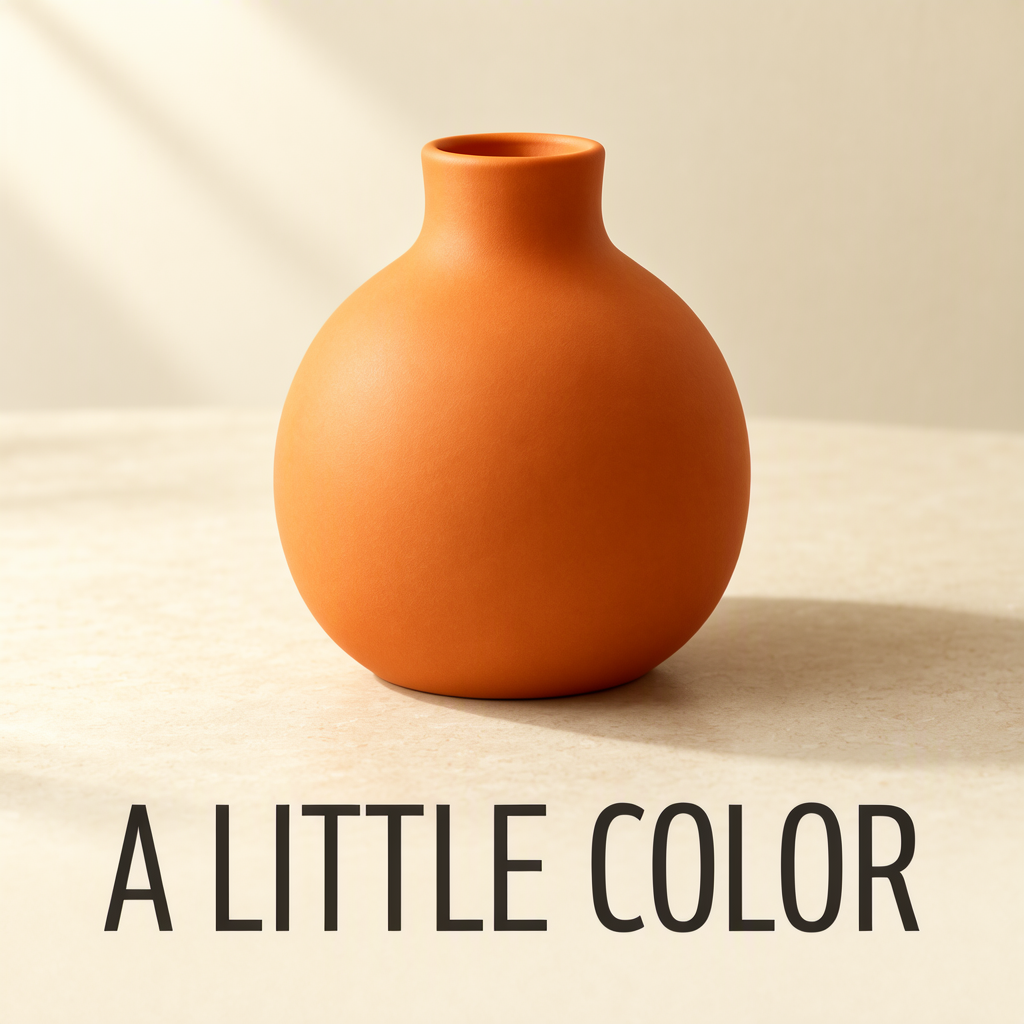
An original 1024 × 1024 image generated with MOSS-Image SFT from a structured JSON layout. Inspect the actual input below, then reuse it in the studio.
| Model | MOSS-Image SFT · moss-image-sft-1.0 |
|---|---|
| Input format | Layout JSON |
| Output | 1024 × 1024 px · 1:1 |
| Style | Specified inside the JSON |
| Seed | 640231 |
| Steps / guidance | 50 / 3 |
| Created | 2026-10-23 |
The bounding boxes use centered pixel coordinates in [top, left, bottom, right] order. This case uses a 1024 × 1024 canvas. The boxes specify intended placement; inspect the actual image to see how the model followed them.
{
  "summary": {
    "meta": [
      "product poster"
    ],
    "canvas": "single",
    "caption": "A restrained product poster on a warm ivory background, featuring a small matte orange ceramic vase and a short dark headline. Soft light from the upper left, generous empty space."
  },
  "items": [
    {
      "label": "text",
      "caption": "Large dark uppercase sans-serif headline on a single line at the bottom.",
      "text": "A LITTLE COLOR",
      "bbox": [
        288,
        -416,
        448,
        416
      ]
    },
    {
      "label": "object",
      "caption": "One matte orange ceramic vase with a short neck, centered on a pale stone surface. A soft shadow falls to the right.",
      "bbox": [
        -384,
        -240,
        192,
        240
      ]
    }
  ],
  "bbox_coord_space": "abs_centralized",
  "bbox_format": "yxyx"
}The requested headline is below the vase. The model changes the vase proportions and lighting as well as the arrangement; the same seed does not lock every visual detail. Compare the requested boxes with the actual output.
Loading a case does not start generation. Results may differ, even with the same seed; model and service changes can affect reproduction.
Model and input format references: OpenMOSS project and official user guide.
Text prompt · 816 × 1024 px
View prompt and settings ↗
Text prompt · 816 × 1024 px
View prompt and settings ↗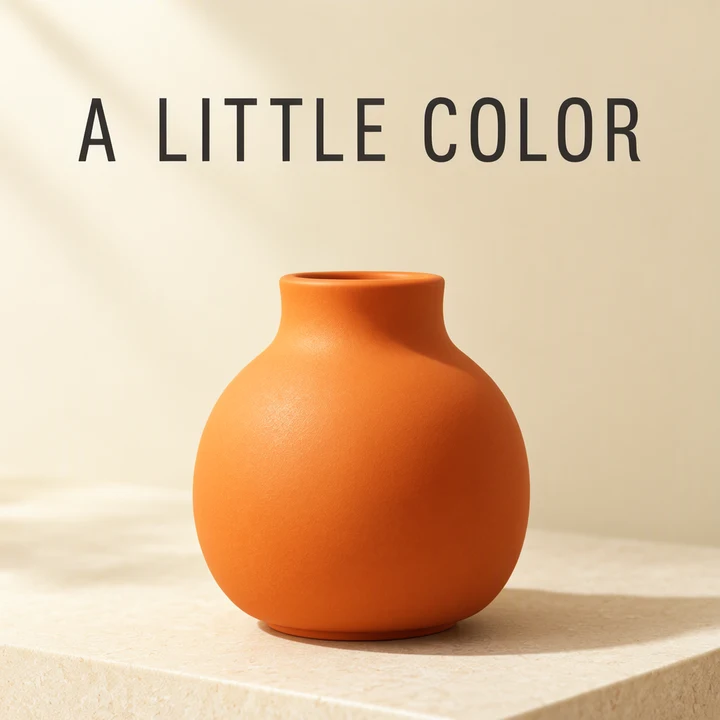
JSON layout · 1024 × 1024 px
View prompt and settings ↗